

If your IPTV keeps buffering, freezing, lagging, or stopping every few minutes, you are not alone. Buffering is one of the most common problems IPTV users face, especially when watching live sports, premium channels, movies, or high-demand events.
The frustrating part is that IPTV buffering does not always have one simple cause. Sometimes the issue is your internet connection. Sometimes it is your IPTV app. Sometimes it is the server your provider is using. In other cases, your internet provider may be slowing down streaming traffic without making it obvious.
The good news is that IPTV buffering can usually be fixed once you know where the problem is coming from. This guide explains the real reasons IPTV keeps buffering and gives you practical steps to improve your stream quality permanently.
What Does IPTV Buffering Mean?
Buffering happens when your device cannot download video data fast enough to keep the stream playing smoothly. Instead of showing the video continuously, the app pauses while it loads more data.
Streaming services work by sending small parts of a video to your device in real time. According to Cloudflare’s guide to buffering, buffering helps video playback continue smoothly by preloading content before it is shown on screen.
When everything works correctly, you barely notice buffering. But when your connection, device, app, or provider cannot keep up, the stream pauses, freezes, or drops in quality.
Why IPTV Keeps Buffering
IPTV buffering usually happens because of one or more of the following problems:
- Slow or unstable internet connection
- Weak WiFi signal
- ISP throttling or network restrictions
- Overloaded IPTV servers
- Outdated IPTV app
- Full device storage or app cache problems
- Wrong video player settings
- High-quality stream using more bandwidth than your setup can handle
The important thing is to test each possible cause instead of guessing. That way, you can fix the actual problem instead of wasting time changing random settings.
How Much Internet Speed Do You Need for IPTV?
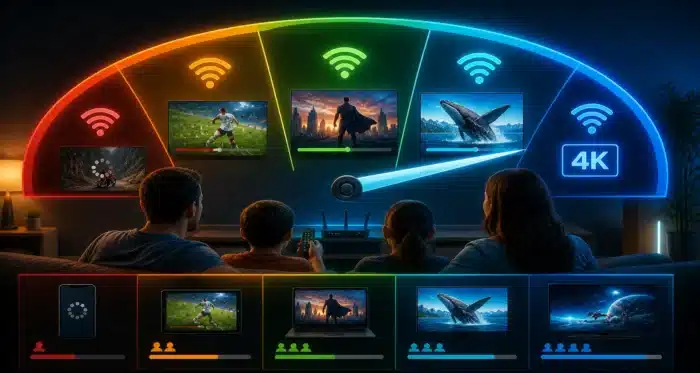
Internet speed matters, but stability matters even more. Many users run a speed test, see a high number, and assume their connection is perfect. But IPTV needs consistent speed, not just one good result.
As a general guide, you should aim for:
- 5 Mbps for standard-definition streams
- 10–15 Mbps for HD streams
- 25 Mbps or higher for 4K streams
- Extra bandwidth if multiple people are using the same connection
Netflix’s official streaming speed recommendations are a useful benchmark because they show how higher video quality needs more bandwidth. You can compare your connection using Netflix’s internet speed recommendations.
To test your connection quickly, use Fast.com on the same device or network you use for IPTV. If the result is much lower than expected, your buffering problem may be internet-related.
Fix 1: Restart Your Router and IPTV Device
The simplest fix is often the most effective. Routers, Firesticks, Android TV boxes, and IPTV apps can all slow down after running for long periods.
What to do
- Turn off your streaming device
- Unplug your router for 30 seconds
- Plug the router back in and wait until it fully reconnects
- Restart your Firestick, Android TV box, or smart TV
- Open your IPTV app again and test a few channels
This clears temporary network issues and refreshes the connection between your device, router, and IPTV server.
Fix 2: Move Closer to Your Router
Weak WiFi is one of the biggest causes of IPTV buffering. Even if your internet plan is fast, your Firestick or TV box may not receive a strong signal if it is far from the router or blocked by walls.
Signs your WiFi is the problem
- Buffering gets worse in certain rooms
- Streams work better near the router
- Other devices also feel slow
- Live channels buffer more than movies
How to improve WiFi stability
- Move the router closer to your streaming device
- Avoid placing the router behind a TV, cabinet, or thick wall
- Use the 5GHz WiFi band if your router supports it
- Restart your router regularly
- Disconnect unused devices from the network
A strong and stable WiFi signal can make a huge difference, especially for live IPTV channels.
Fix 3: Use Ethernet Instead of WiFi
If you want the most reliable IPTV connection, Ethernet is better than WiFi. A wired connection usually gives better stability, lower latency, and fewer random drops.
This is especially useful if you watch live sports, high-bitrate channels, or 4K streams. WiFi can be affected by distance, interference, and other devices, while Ethernet gives your IPTV app a more direct connection.
Best setup
- Use an Ethernet cable from your router to your device
- If using Firestick, use a compatible Ethernet adapter
- Restart your device after connecting Ethernet
- Run another speed test after switching
If your IPTV buffering disappears after switching to Ethernet, your WiFi was likely the main problem.
Fix 4: Clear Your IPTV App Cache
IPTV apps store temporary files to help them load faster. Over time, that cache can become too large or corrupted, causing freezing, crashing, slow loading, or buffering.
Amazon provides official Fire TV instructions for clearing app cache through the device settings. You can review the official steps on Amazon’s Fire TV cache support page.
How to clear cache on Firestick
- Go to Settings
- Select Applications
- Choose Manage Installed Applications
- Select your IPTV app
- Click Clear Cache
- Restart the app
When to clear data instead
If clearing cache does not fix the issue, you can also clear app data. This resets the app and removes saved login details, so make sure you have your IPTV username, password, portal URL, or M3U link ready before doing it.
Fix 5: Free Up Storage on Your Firestick or Android Box
Low storage can make IPTV apps run badly. Firestick devices in particular can slow down when storage is almost full.
Symptoms of low storage
- IPTV app opens slowly
- Channels take longer to load
- App freezes or crashes
- Buffering happens more often
- Device feels slow in general
How to free up space
- Delete apps you do not use
- Clear cache from large apps
- Remove old downloader files
- Restart the device after cleaning storage
After freeing up space, open your IPTV app again and test several channels. If performance improves, your device was struggling with storage or memory pressure.
Fix 6: Check If the IPTV Server Is Overloaded
Not all buffering comes from your side. Sometimes the IPTV provider’s server is overloaded, especially during big live events or peak viewing hours.
This often happens when many users are trying to watch the same popular channel at the same time. The server may not have enough capacity, which causes buffering for everyone connected to that source.
How to tell if the provider server is the issue
- Only one channel or category buffers
- Buffering happens during live sports or peak hours
- Other apps like YouTube or Netflix work fine
- The same IPTV account buffers on different devices
- Other users report similar problems
If the server is overloaded, changing your WiFi or clearing cache may not fully solve the issue. You may need to wait, switch to another channel source, or contact your provider.
Fix 7: Try a Different IPTV Player
Your IPTV provider may give you login details, but the app you use to play the streams can still affect performance. Some apps handle playlists, buffering, EPG data, and live channels better than others.
Popular IPTV players to test
- TiviMate
- IPTV Smarters
- XCIPTV
- Perfect Player
- VLC Media Player
If your IPTV service buffers in one app but works better in another, the issue may be app-related. VLC is also useful for testing direct streams, and you can download it from the official VideoLAN VLC website.
Fix 8: Adjust Player Settings
Many IPTV apps include playback settings that can improve stability. The exact options depend on the app, but the idea is the same: change how the app handles video decoding and buffering.
Settings to test
- Switch from built-in player to external player
- Try hardware decoding
- Try software decoding if hardware decoding fails
- Increase buffer size if the app supports it
- Disable unnecessary animations or features
Do not change everything at once. Adjust one setting, test a few channels, and then move to the next. This helps you understand what actually improves performance.
Fix 9: Use a VPN If Your ISP Is Throttling IPTV
Some internet providers slow down certain types of streaming traffic, especially during busy periods. This is often called throttling. If your IPTV buffers while other websites work normally, throttling may be one possible cause.
A VPN encrypts your connection, which can make it harder for your internet provider to inspect or slow specific traffic types. The Electronic Frontier Foundation has useful information about network neutrality and how internet traffic can be managed.
When a VPN may help
- IPTV buffers mostly during evenings
- Sports channels buffer more than regular channels
- Your speed test is fine but IPTV still lags
- IPTV works better on mobile data than home WiFi
- Your provider says there is no server issue
Important VPN tip
A VPN is not magic. A poor VPN can make buffering worse. Use a fast server location close to you, and test several locations if needed. If one VPN server is slow, switch to another before assuming the VPN does not work.
Fix 10: Change DNS Settings
DNS does not directly increase your internet speed, but it can sometimes improve how quickly your device connects to servers. If your ISP’s DNS is slow or unreliable, switching to a public DNS service may help with loading issues.
Common public DNS options
- Cloudflare DNS: 1.1.1.1
- Google Public DNS: 8.8.8.8
You can learn more about Google’s public DNS service from the official Google Public DNS documentation.
This fix may not solve every buffering problem, but it can help if your issue is related to slow domain resolution or poor routing.
Fix 11: Lower the Stream Quality
If your connection cannot handle a high-bitrate stream, lowering the quality can stop buffering immediately. This is especially useful on slower internet connections or crowded home networks.
Try this if available
- Switch from 4K to HD
- Switch from FHD to HD
- Use backup channels with lower bitrate
- Avoid high-quality streams during peak hours
Many users prefer the highest quality option, but a stable HD stream is usually better than a 4K stream that freezes every minute.
Fix 12: Reduce Other Network Usage
Your IPTV stream shares bandwidth with every other device in your home. If someone is downloading files, gaming, watching 4K video, or backing up photos, your IPTV connection may suffer.
What to check
- Phones downloading updates
- Game consoles updating large files
- Cloud backups running in the background
- Multiple TVs streaming at the same time
- Smart cameras uploading video
Try pausing heavy downloads and testing IPTV again. If buffering stops, your home network was overloaded.
Fix 13: Keep Your Device and App Updated
Outdated apps can cause compatibility problems, login errors, playback failures, and buffering. The same applies to Firestick, Android TV, and smart TV firmware.
Update checklist
- Check your IPTV app version
- Update your Firestick or Android TV software
- Restart after updates
- Remove old versions of apps before reinstalling
Updates often include bug fixes, security improvements, and playback improvements that can help with streaming stability.
How to Know If the Problem Is Your Device, Internet, or Provider
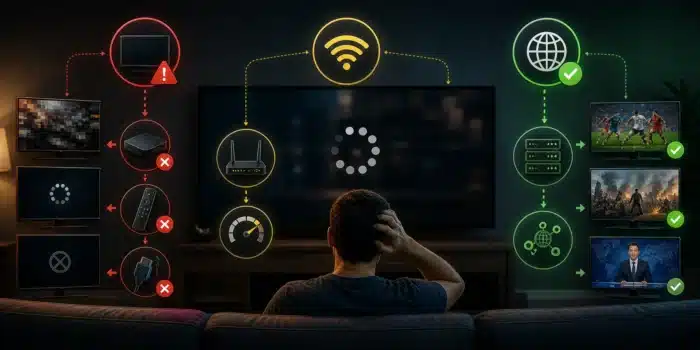
Use this simple test:
If only IPTV buffers
The issue may be your IPTV app, IPTV server, provider, VPN, or ISP routing.
If all streaming apps buffer
The issue is more likely your internet connection, WiFi signal, router, or device performance.
If IPTV buffers on one device only
The problem is probably device storage, app cache, app settings, or WiFi signal near that device.
If IPTV buffers on every device
The issue may be your internet connection, IPTV provider, or ISP restrictions.
Permanent IPTV Buffering Prevention Tips
Once your IPTV works properly, follow these habits to keep it stable:
- Restart your router once in a while
- Use Ethernet where possible
- Keep enough free storage on your device
- Clear IPTV app cache regularly
- Use a reliable IPTV player
- Keep your apps updated
- Avoid overcrowded WiFi networks
- Use a VPN only if it improves performance
- Choose providers with stable servers
The goal is not just to fix buffering today, but to create a setup that stays stable over time.
Common IPTV Buffering Myths
“Fast internet means IPTV should never buffer”
Not always. Fast speed helps, but stability, routing, server quality, and device performance are just as important.
“A VPN always fixes IPTV buffering”
A VPN helps if throttling or routing is the problem. If your IPTV provider’s server is overloaded, a VPN may not fix it.
“Buffering always means my provider is bad”
Sometimes the provider is the issue, but buffering can also come from WiFi problems, app settings, device storage, or your local network.
“Clearing cache is enough”
Clearing cache can help, but it is only one part of troubleshooting. If the real problem is server overload or weak WiFi, cache clearing will not fully solve it.
Final Thoughts
IPTV buffering is annoying, but it is usually fixable. The key is to find the real cause instead of guessing.
Start with the basics: restart your router, test your speed, move closer to your router, and clear your IPTV app cache. If the issue continues, test Ethernet, try another IPTV player, adjust playback settings, and check whether your provider’s server is overloaded.
If buffering mostly happens during peak hours or live sports, your ISP or IPTV server may be part of the problem. In that case, a good VPN, better routing, or a more reliable provider may help.
Once you build a stable setup, IPTV can run smoothly with far fewer interruptions.
FAQ
Why does IPTV keep buffering even with fast internet?
Fast internet does not always mean stable IPTV. Buffering can still happen because of weak WiFi, ISP throttling, overloaded IPTV servers, app cache problems, or poor player settings.
How do I stop IPTV buffering permanently?
Use a stable connection, clear app cache, free up device storage, test Ethernet, update your IPTV app, and check whether your provider’s server is overloaded.
Does a VPN help with IPTV buffering?
A VPN can help if your ISP is throttling or blocking IPTV traffic. However, it may not help if the IPTV provider’s server is overloaded.
What internet speed is best for IPTV?
For HD IPTV, 10–15 Mbps is usually enough for one stream. For 4K, aim for at least 25 Mbps, with extra bandwidth if other devices are using the same network.
Can Firestick cause IPTV buffering?
Yes. A Firestick with low storage, too much cache, outdated software, or weak WiFi can cause IPTV buffering and app crashes.
Why does IPTV buffer more during live sports?
Live sports attract more viewers at the same time, which can overload IPTV servers. Network congestion and ISP throttling can also be worse during popular events.

No comments yet