

Among the IPTV applications available to users, IBO Player is one of those which can be found on almost any platform and operating system. The nice user-interface is not the only thing that might attract users, it’s smoothness of playback and inclusion of basic features makes it a popular choice among IPTV users.
Who created IBO Player? What is the official website?
I usually tend to start each application article by clarifying the origin of it, making sure that we know where to get it safely. IBO Player is created by a group who call themselves IBODEV. This application is only one of their products and they provide a broad range of services in various fields.
What is good and bad about IBO player?
Like any product, this application has pros and cons. I mean, you might not find it as a bad thing but we call it that just for the sake of this article.
You can install it on almost any device (Good)
IBO Player is available for any operating system. From Android devices to even Linux platforms. Their website also provides the direct download link for each and every platform-suitable installation file. In this regard, it may remind you of Smarters Pro application which is also installable on most platforms.
A good choice for non-android Smart TVs (Good)
If you ask any IPTV consumer, when it comes to hardware choice, the biggest hurdle would be Smart TV’s which are not android. These devices have a stubborn closed-source operating systems and as a result, application developers lose the will to create IPTV players for them. The reason is the OS limits coders and they must remove/exclude many features to comply with the TV operating system and fit it in. That’s one of the important reason why you do not see Tivimate IPTV player or XCIPTV by OTTRUN on devices like Samsung and LG TV.
You can not record any content (bad)
This application has no recording function. This single handedly can drop it down in the ranking comparing to other apps in the market. It is true that not all of us use recording but having even it, even on a basic level, can come to aid from time to time.
There is no multi screen feature (bad)
Another big missing feature that caught my eye was multi-screen. Again, not all consumers may require this on daily use of the app but you must agree that sometimes every single one of us want to use this feature.
IBO Player uses remote playlist activation (bad, probably)
In majority of IPTV apps that we have used, there is a login / playlist section where we add the server address, username and password of the playlist we purchased from our provider. It’s the same with this app as well with only one small difference; you need to do this on their portal. On their website, there is a Playlist Management section where you enter your application details, log into the system and add your IPTV credentials and hit save. Then their cloud system forwards the details remotely to the app you have installed on your device and then you can see the content.
One of the downsides of this is that if their API connection is blocked or censored in certain regions, you basically can not see the content update on your side as their platform can not send the meta data to your application. However, this is a rare case.
It’s paid (bad, probably)
IBO player has a short 5 days period of free trial, allowing you to evaluate the overall performance and functionality. After that, a license must be purchased.
How to install IBO Player on Android phones and tablets?
The installation on these devices is very easy since we have quick access to the browser and can easily download and install the file.

1- Either from IBO player official website or from our application download center, get the installation file.

2- No wonder why you are warned about this, the file is downloaded from outside of your android device app store. However it’s safe. Click Download Anyway.
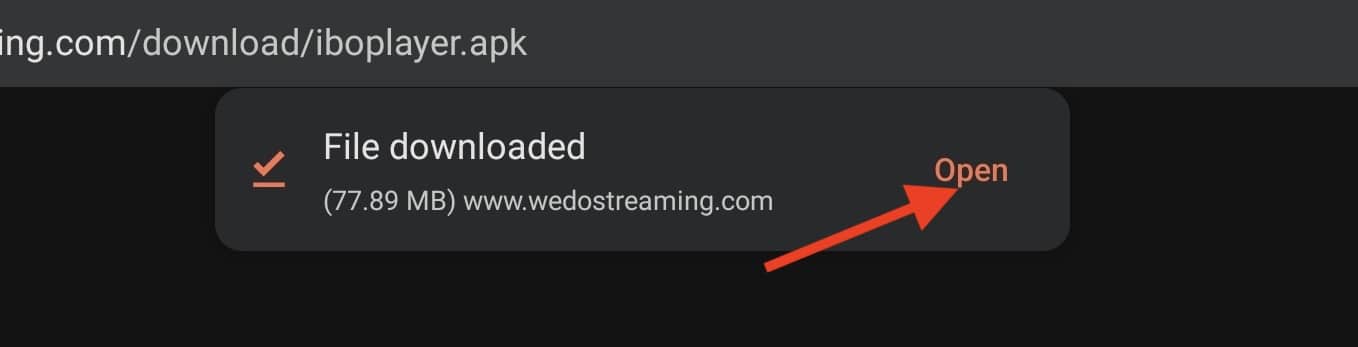
3- Open the file.
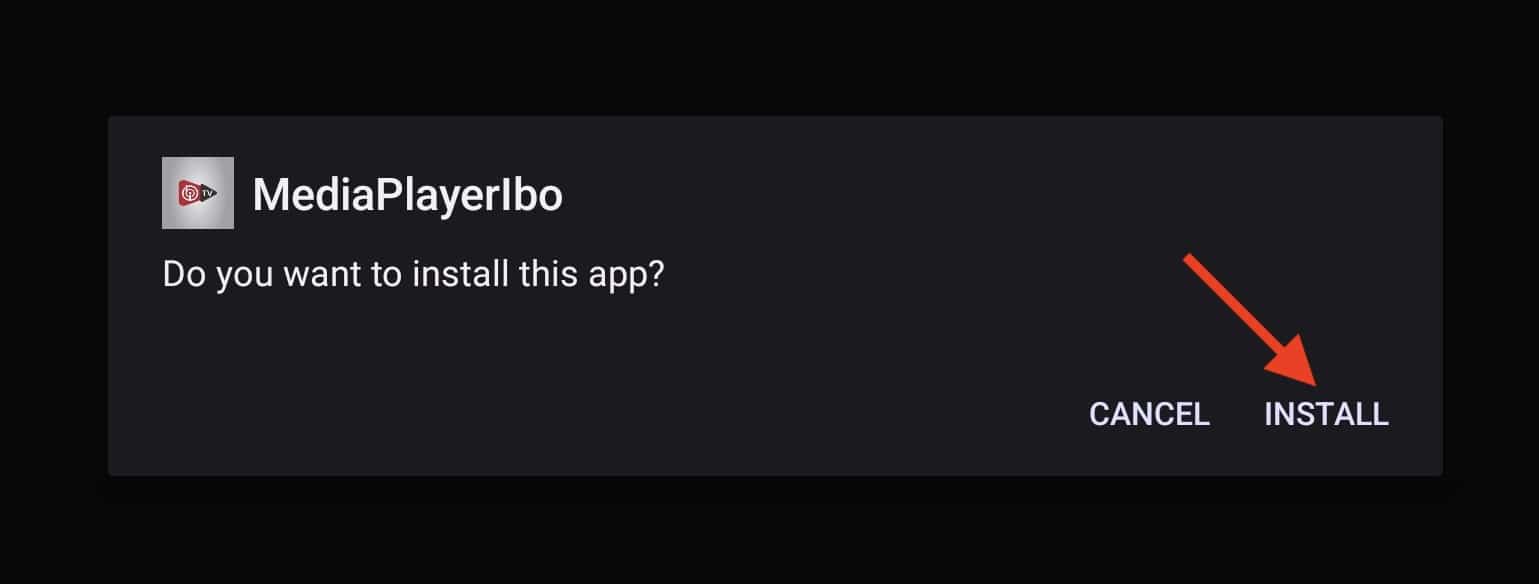
4- Click Install.

5- IBO Player is installed, now you can open it.
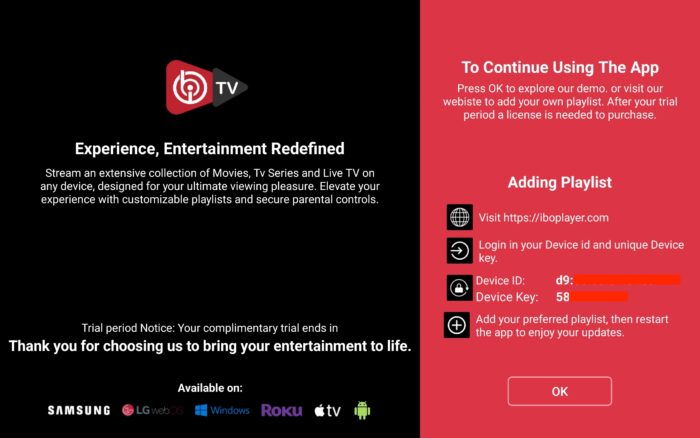
6- Right after opening the app for the first time, you will be presented with this introductory page. It’s actually very informative and clarifies what should be done. We will cover the playlist addition procedure later in this tutorial. For now, click OK.

7- It’s loaded and ready for action.
How to install IBO Player on Windows?
If you have a Windows PC, that’s laptop or any personal computer, you can also utilize this application for your streaming purposes. Key note is that it only works on Windows 10 and above and the file provided is for 64 bit systems.

1- First of all, download the windows installer. We do provide links for that both from IBO dev website and our host.

2- Windows security should pop up and stop the installation as the file is downloaded from our side the Microsoft store. Click More Info.

3- Now you can proceed with installation of IBO Player. Click Run Anyway.

4- Click Next.

5- If you want, tick the checkbox to have an icon of the app on the dashboard, then click Next.

6- Finalize the installation by clicking Install.

7- Click finish to open the IBO Player app.
Installing IBO Player on Amazon Fire TV Stick

1- From the dashboard of the Amazon Fire TV Stick, move over on the magnifier icon, then click down to highlight the search field. After that click OK.

2- We need to install an application called Downloader which enables us to side-load and install applications from outside of Amazon App Store. When the virtual keyboard pops up, click D. Then you should see the first suggestion as Downloader, move over to it and click OK.

3-Choose the app by selecting it. This will initiate the installation.
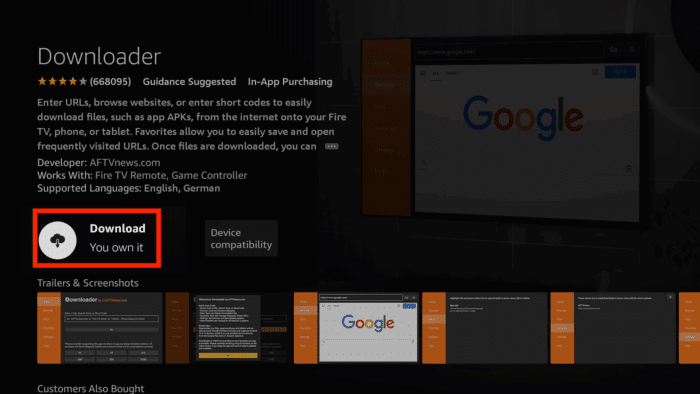
4- Fulfill this step by clicking Download.

5- A pop up message should show up prompting you to grant media access to Downloader. Click Allow.

6- Once the app is loaded. Move the selection to the search field on top of yellow Go button and press OK on the remote.

7- The official Downloader code for IBO Player android version is 511693. Type this in and click Go.

8- IBO Player is being downloaded from the official website. You can also notice that from the left column, we are now on Browser section. Do not touch anything until this step sorts itself.

9- Wait while download is in progress.

10- Amazon security bumps the installation since the file is from out side of amazon app store. We need to enable the installation permission for Downloader. Click Settings.

11- Click Install Unknown Apps.
Note: If you do not see the above section and Developer option is not visible, move the selection on About and press OK button on the remote 7 times. After that Developer Options should appear. Then select it and follow the steps.
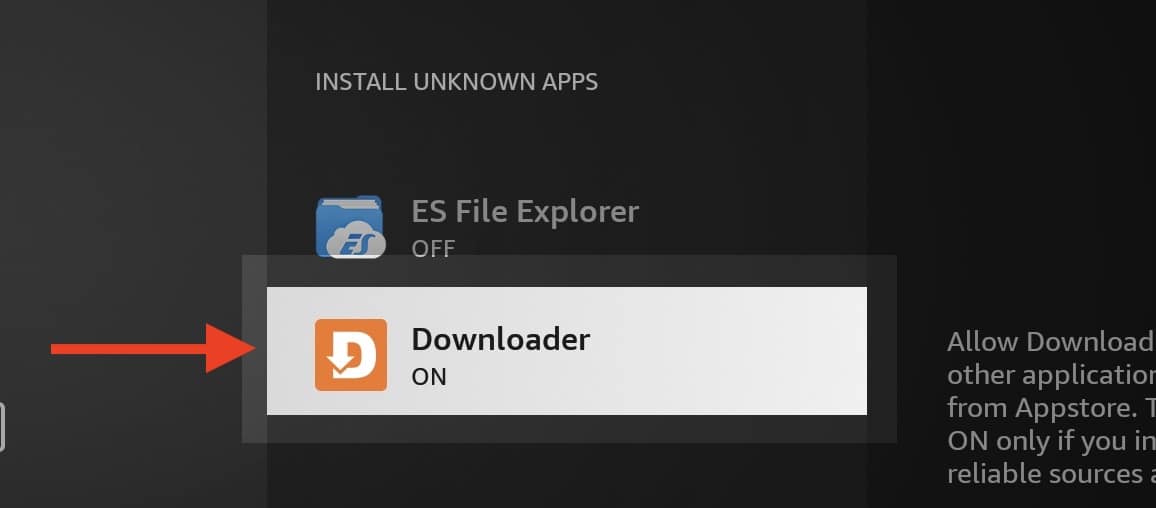
12- Select Downloader and click OK button so the OFF changes to ON.

13- Now we can proceed with installation of IBO player on Fire Stick which is pretty normal with few Next and OK.

14- Once the app is installed, above should be the first message popping. Click OK.

15- App is ready.
How to install IBO Player on macOS?
If you want to run IBO player on devices like Macbook or iMAC, you need to install the macOS version.

1- Open IBO Player official website and from their download section get the macOS version.

2- Open the downloaded file and then drag-and-drop the icon into the application folder.

3- After 10 seconds, IBO player is installed on your macOS. Open Launchpad and click the app icon.

4- As you can see, since we installed the app from outside of app store, launching it is rejected.
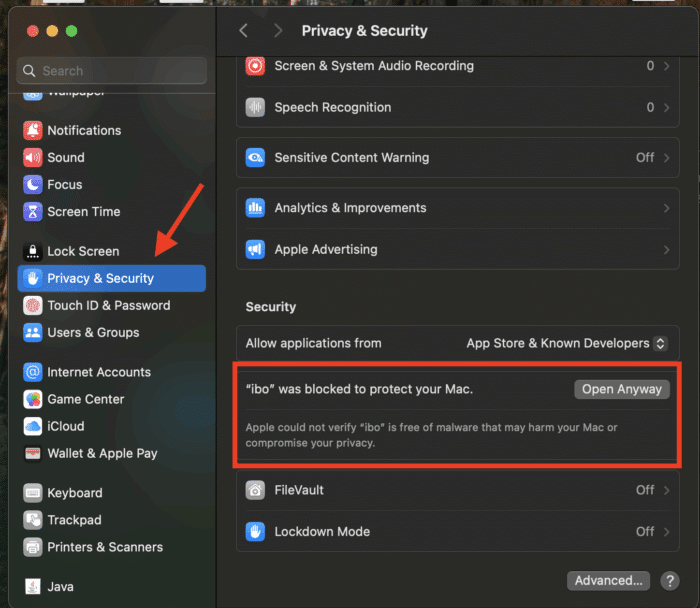
5- From the top left side on the toolbar, click the Apple icon, then choose System Settings. When it’s loaded, from left column, scroll down to Privacy & Security. Click that and from right side, scroll down until you see the application security section.
IBO Player is blocked and requires our manual intervention for launching. Click Open Anyway..

6- Choose Open Anyway. This choice is permanent and on later launch of the app it will open straightaway.

7- Application is ready for use. I will explain how to sort this later in this tutorial.
How to install IBO Player on LG and Samsung TV?
BY popular demands, there was no way I would have forgotten about our non-android Smart TV devices. For this example, we’re using an LG Smart TV with WebOS. For other devices like Samsung or Toshiba, steps are basically the same.
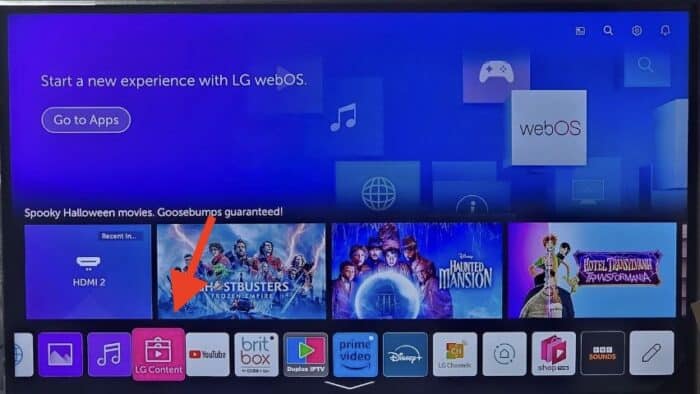
1- Open LG Content Store.
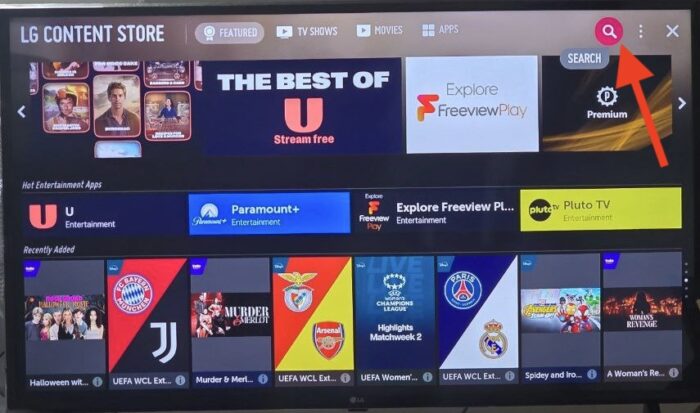
2- From the top right corner, click the magnifier icon to search.

3- Type-in IBO Player to look for this app.

4- In the results, choose the right application as shown above. You might see other variations with similar names, disregard them and only focus on “Ibo Player”.

5- Click Install to initiate the installation.

6- Select Launch to open up IBO player.

7- After a successful installation, a welcome message will pop up for the first time. Follow the guide below to add a playlist.
How to add IPTV Playlist to IBO Player
Now that we learned how to install the app on various platforms, it’s time to see the procedure for adding a playlist. IBO player uses Remote Playlist Activation. In other words, you add the login credentials of your IPTV account on their website in Manage Playlist section and once saved, data will appear on your application on the streaming device.

1- From the IBO player official website click the Manage Playlist from top menu.

2- Now we need to add the the MAC Address and Device Key of our application into the form to be able to log into the playlist management section. Where to find those? see the next step.

3- Open the application on your IPTV device, from the main dashboard, click the personnel icon.

4- In the top left section, Device Info contains the details we are looking for.
Simply add them in the form in step 2 and Login.

5- We’re logged into the playlist management on iboplayer.com . This is where we can add our IPTV playlists/accounts. There are two ways to do this, let me explain them both:
Add Playlist (M3U/Streaming Line)
If all you have from your provider is a Streaming line, which is a long string, this section is the easiest way to add a list.

1- From the portal we earlier logged into, click Add Playlist.

2- Here, there are few fields to fill in:
Playlist name: is the title you can assign to your list
Playlist URL: Here you must input the link address to your playlist which is provided by your service admin.
XMLTV EPG URL: Now this is optional and you can leave it empty. If left empty, IBO Player will extract Program Guide from the playlist by default. However, if you have a 3rd-party EPG source and want to use that, you can present it here.
Protect This Playlist: Once checked, your can add a pin to this playlist for security.
Click Save once you are finished adding the details.
Add XC Playlist
If you remember, we have already covered Xtream Codes API Login in a separate article. This section uses the same playlist input method.

1- From the dashboard, click ADD XC Playlist.

2- Majority of the fields are the same as the previous method, the only new one is HOST, which is the server address.
Having a look over Live TV section of IBO Player
Before we proceed with this section, I want to point out something which I believe you will find it very useful too. I think the default structure of the Live TV section is buggy, it’s not properly adjust and sometimes the blocks edges overflow on each other, creating a messy appearance.
Fixing the messiness of Live TV section

As you can see, the name of the channels in middle column is overflowed under the channel preview screen. Moreover, the EPG is also disoriented. Luckily, we can fix this easily by changing a setting from the dashboard.

1- From the dashboard of IBO Player application, click the Screen Icon next to the Wi-Fi sign.

2- We’re now in Live Screen Style. I am absolutely clueless as to why the two available styles are named after Thai and Malai but anyways. By default it’s set on Malai TV Style, the one we found messy and disorganized. Change it to Thai and click Save.

3- You can now see the difference. Channel names have more space, because the categories are hidden. The mini screen on the right as well as the program guide are properly fitted.
To bring up the categories, simply click the left arrow on the remote. If on a touch device, use the back/reverse function.

4- Here are the categories. I believe this look works a lot better than the default one.
How to add a channel to favorite on IBO Player
The answer is “pretty easily”.

1- From channel listing overview page, long press and hold on a channel that you want to add to favorite.

2- By clicking ADD, the addition of the selected channel to the favorite list is done.

3- The message at the bottom as well as the heart sign next to the channel name confirms that it’s been added to favorite list.

4- Favorite list is located at the top of the category column, open it.

How to search through Live TV channels
Another function in the Live TV section of IBO Player is search. It looks through all channels inside all categories, so it’s a broad search.

When on Live TV overview page, you should see the search function in the left bottom corner.

Once the searching page is up, you can put in the desired channel name, or even part of it, and click OK. Remember, it uses “specific term” type of searching so if you put a wrong combination, it can not look up the right channel for you.
Having a look over Movies and Series section
The VOD section on IBO Player is very basic, yet very tidy and nice looking. All the essential features are available and it’s easy to navigate through.

The default listing is based on latest additions by the provider. If you click and hold OK button on any movie entry, it will be added into the favorite folder. There are 3 controls at the top right corner of which functions are worth mentioning. The one with palette sign (1) is the Theme selector. It has two options, Modern and Normal. The above picture shows the modern look.
The downward arrow (2) is the sorting. You can sort entries based on the addition date, rating or alphabetically. The magnifier (3) obviously is the search function.
How to purchase the paid license of IBO Player
As discussed, this application is paid and after the initial 5 days free period, a license must be purchased. I will show you exactly where this must be done.

1- Open IBO Player website and from the top menu click Activate Device.
2- You will be prompted to log into the system using the MAC Address and Device Key. Both are available on the app through App Info button in the bottom of the dashboard.
Note: If you have logged in before, you will be redirected to the next section automatically.

3- From the left column choose Activate Device and then select your desired payment method.

4- Agree to the terms of service by clicking the green button.

5- Two plans are available to choose from: 1 Year which is 5 euros and the lifetime for only 10 euros. Choose one and then click Checkout.

6- Fill in the data required and click Proceed.

7- Select the desired card method payment based on your preference and make the payment. After the payment, your MAC will be activated as per the chosen license type. Close and reopen the application so the changes apply.
M3U Playlist management on the dashboard of IBO Player

In the dashboard of the app, there is an icon next to TV Archive which has M3U name on it. This is where all your playlists are stored. Open it.

At the top right corner, the Device ID and Device Key are available. At the bottom (2), you can Add a New Playlist. But let’s first look into the currently added playlist (1).

Here you can update the playlist content, for which we also have a refresh button on the dashboard bottom side, or just remove this playlist. Also worth mentioning that if I have had a PIN assign to this playlist when I added it earlier from IBO Player website, I would have needed to provide that for stepping into this section.

Back to the main playlist management section, from the bottom right we can add a new playlist, by doing that the above page should pop up. You can add a list in Xtream Codes format or use the lower button to add a M3U streaming line.
Functions of the dashboard bottom buttons on IBO Player
When on dashboard, there are a few buttons at the bottom of the page which do attract the attention.

Some of them very handy and knowing their function will for sure improve your experience with the app. I will explain each from left to right.
- Wi-Fi: it’s basically a shortcut to the wireless section of the device,
- Live TV Style: You can choose between two outlooks, which we tried already.
- Live TV Type: I honestly did not understand this one.
- Main Info Section: You can find details about App, Device and playlist.
- Activation Type: The default system works better, it’s a setting allowing you to add activation code to the app. Earlier in this tutorial we used the default system and its working fine.
- Settings: We will cover this next.
- Data Refresh: it updates the full playlist content.
- Exit: closes the application.
Understanding the Settings section on IBO Player
The heart of the configuration of the app lies here.

From top left we will have a look at each setting.
Network
It’s the wireless list of your device. By clicking that, the Wi-Fi section opens up.
Parental Control
Here you can set a PIN on the application so your kids not being able to use it. There is a trick to it though. For the first time, you need to enter the current password which is 0000 although you may not have assigned it before.
Another thing is that if you set a password here and forget it, simply log into the portal on IBO Player website and reset the PIN.
Check for Updates
IBO Player can check for updates remotely and auto-update the application.
Language
The software supports 16 languages.
Application Info
Information like application version, the code for the current version and the expiration date of the license of the app are available here.
Clear Cache
If you ever notice a functionality issue in IBO player, like EPG not working properly, images are corrupted … , clearing the cache usually does the job.
Manage Categories
This one is very handy and I have seen more and more IPTV applications adding this feature. Basically, you can hide certain categories from Live TV, Movies and Series section in order to trim the playlist, a smaller playlist consisting of what you really wanna watch.
Live TV Player
It’s possible to switch the media player engine for the Live TV. There are 3 choices available: Android Player, EXO Player and VLC. The codec libraries of EXO and VLC players are embedded inside the application.
VOD Player
Just as the above, you can do the same for movies and series.
Main Screen Background
There are 12 graphics you can choose from and assign as the main background of the application.
Content Strategy
I think this idea is nice as well. You can tell IBO Player whether to load the whole content, all Live TV and VOD data, at once when the app is open or load them when you actually open the certain section.
Auto Boot on Start
Using this, we can determine whether IBO Player opens up when the device is turned on.
More Options
There are 7 extra settings you can enable.
- Stream URL Redirection Check: This monitors to see whether the server address you have added is the one you are getting data from or actually it gets redirected to another one.
- Live TV EPG: You can disable the program guide on Live TV. It’s enabled by default.
- Use Extension in Stream URL: It follows the extension type of the streaming URL you have added as the playlist. For instance if you add the M3U url as “M3U_Plus” which is also known as “M3U with options”, IBO player will follow that and loads channel listing in categories.
- Use M3U format in Stream URL: No matter what sort of streaming line you add, the app will treat them as M3U type.
- Use Runtime for Movies: If enabled, the application will only load the content inside each movie category when you open them.
- Use Runtime for Series: same as the above but for series.
- Use UTF-8 Decode: If certain playlists require UTF-8 for decoding, here you can enable it.
Gathering thoughts on IBO Player
I think it’s a good application. It’s minimal, does lack a few important features but have to say the playback is smooth and it’s suitable especially for people who are using Samsung and LGTV. IBO application has a period of 5 days free trial. After that a fee of €5 for 1 year or €10 for a lifetime license must be paid. Regarding the license price, I think it’s over priced.
Frequently Asked Questions about IBO application
Which devices is IBO Player available for?
As per their official website, the IBODev team provide IBO Player for All android devices, apple computers with macOS, Windows 10+ and Debian and Ubuntu Linux systems. It’s also available on Content Store of Samsung and LGTV.
Can I record with IBO Player?
No, at the moment with 230 being the latest version, it does not have the recording function of any kind.
Is IBO Player free?
Upon first installation, you will get a 5 days trial period to test the application. After that you must purchase a license. It’s either 5 euros for a year or 10 euros for the lifetime license.
What payment methods are available for paid license purchase?
You can either pay via Card through their store gateway or make your purchase through Cryptocurrency using CoinPayments Crypto gateway.
Is it possible to watch in multi screen with IBO Player?
No, this is one of the missing features on this application.

No comments yet