
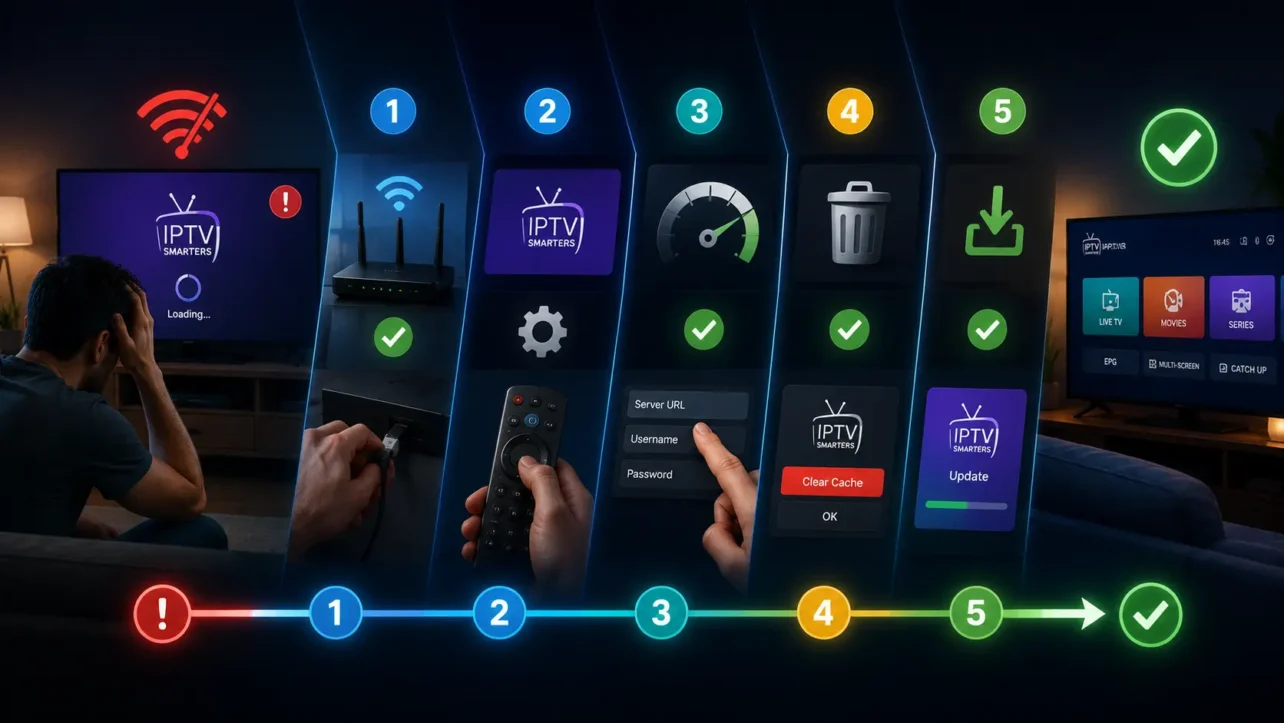
If IPTV Smarters is not working properly on your device, you are not alone. This is one of the most common IPTV-related issues users face on Firestick, Android TV, smartphones, and smart TVs.
Sometimes the app refuses to load channels. In other cases, it may freeze, crash, buffer constantly, or display login errors. Many users assume the IPTV provider is broken, but often the issue is actually caused by the app, the device, the internet connection, or incorrect settings.
The good news is that most IPTV Smarters problems can be fixed with the right troubleshooting steps. In this guide, we will explain the most common causes behind IPTV Smarters not working and show you exactly how to fix them step by step.
Why IPTV Smarters Stops Working
IPTV Smarters relies on several components working together correctly:
- Your IPTV provider
- Your internet connection
- The IPTV Smarters app itself
- Your device performance
- Server communication
If any of these parts fail, the app may stop working properly.
Most Common IPTV Smarters Problems
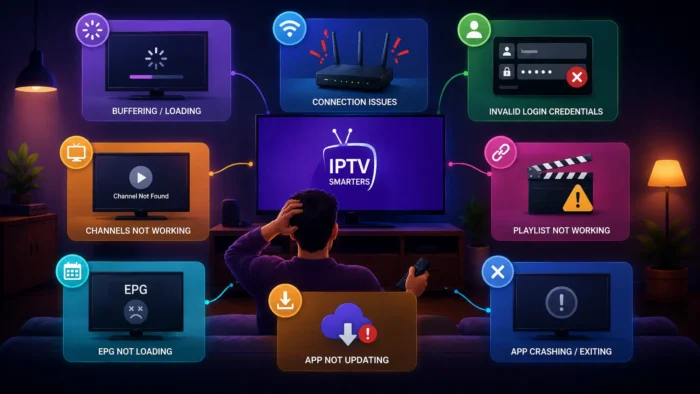
Channels Not Loading
This is one of the most frequent complaints. The app opens normally, but channels never load or stay stuck on a loading screen.
Buffering and Freezing
Streams may start normally but constantly pause or freeze during playback.
App Crashing
IPTV Smarters may close unexpectedly or crash immediately after opening.
Login Errors
Some users receive login failed messages even though their credentials appear correct.
Black Screen Issues
Channels load but show only a black screen with no video playback.
EPG Not Loading
The electronic program guide may fail to update or display channel schedules.
First Things You Should Check
Before changing settings or reinstalling the app, you should check the basics first.
Check If Your IPTV Subscription Is Active
If your subscription expired, IPTV Smarters will not load content correctly.
- Confirm expiry date
- Contact your provider
- Verify account status
Check Your Internet Connection
Weak or unstable internet is one of the biggest reasons IPTV Smarters stops working properly.
You can test your speed using Fast.com.
For stable IPTV streaming, consistency matters more than maximum speed.
Restart Your Device
Temporary glitches can affect app performance.
- Restart Firestick
- Restart Android TV box
- Restart smartphone or tablet
This simple step fixes many temporary issues.
Restart Your Router
Network instability can interrupt communication between IPTV Smarters and the IPTV server.
- Unplug router for 30 seconds
- Reconnect and wait for full connection
This refreshes the network connection.
How to Fix IPTV Smarters Not Working
Fix 1: Clear IPTV Smarters Cache
Over time, IPTV Smarters stores temporary files that can become corrupted. Clearing cache often fixes freezing, crashes, and loading issues.
Amazon explains cache management for Fire TV devices in the official Fire TV support guide.
How to Clear Cache on Firestick
- Go to Settings
- Select Applications
- Open Manage Installed Applications
- Select IPTV Smarters
- Click Clear Cache
After clearing cache, restart the app and test playback again.
If Cache Clearing Does Not Work
You can also clear app data.
- Select Clear Data
- Log in again
Remember that clearing data removes saved login details.
Fix 2: Update IPTV Smarters
Outdated versions of IPTV Smarters may stop working correctly after server-side changes or app compatibility updates.
Why Updates Matter
- Bug fixes
- Improved compatibility
- Playback optimizations
- Security improvements
If you are using an old version, updating the app should be one of your first troubleshooting steps.
How to Update IPTV Smarters
- Check the app store if installed officially
- Download latest APK from trusted source
- Install updated version
Avoid downloading modified APKs from unknown websites.
Fix 3: Reinstall IPTV Smarters
If the app continues to malfunction, reinstalling it may solve hidden corruption issues.
How to Reinstall IPTV Smarters
- Uninstall the app completely
- Restart your device
- Install fresh version
- Log in again
Reinstalling removes damaged files and resets app settings completely.
Fix 4: Check Login Details Carefully
Many IPTV Smarters login problems are caused by incorrect credentials.
- Wrong username
- Wrong password
- Incorrect server URL
- Extra spaces during copy-paste
Even a small mistake can prevent the app from connecting to the IPTV server.
Important Tip
Type credentials manually if possible instead of relying completely on copy-paste.
Fix 5: Use a VPN
Some internet providers interfere with IPTV traffic. This can cause IPTV Smarters not working issues even if your subscription is active.
The Electronic Frontier Foundation explains how ISPs may manage or restrict certain types of internet traffic.
How a VPN Can Help
- Bypasses ISP restrictions
- Improves privacy
- May improve streaming stability
However, not every VPN improves performance. A slow VPN server can sometimes make buffering worse.
Fix 6: Check If IPTV Provider Servers Are Down
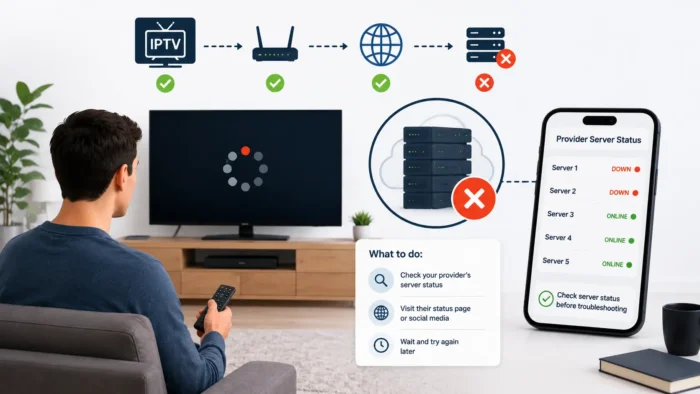
Sometimes the issue is not IPTV Smarters itself. If your IPTV provider servers are offline, the app will fail to load content.
Signs of Server Problems
- Channels never load
- Login suddenly stops working
- Everyone using the same provider has issues
In this situation, waiting for the provider to restore service may be the only solution.
Fix 7: Solve IPTV Smarters Buffering and Freezing
Buffering is one of the biggest complaints from IPTV users. Even if IPTV Smarters opens correctly, streams may constantly pause, freeze, or lag during playback.
Buffering is not always caused by the app itself. In many cases, the issue is related to internet stability, overloaded IPTV servers, or device performance.
Common Causes of Buffering
- Weak WiFi signal
- Slow internet connection
- ISP throttling
- Overloaded IPTV provider servers
- Low Firestick storage
- Heavy IPTV app resource usage
How to Reduce Buffering in IPTV Smarters
- Move closer to your router
- Use 5GHz WiFi if available
- Use Ethernet adapter for Firestick
- Clear IPTV Smarters cache
- Close background apps
- Restart your device regularly
Stable internet is usually more important than raw speed. Even fast internet can buffer if the connection is unstable.
Fix 8: Solve IPTV Smarters Black Screen Problems
Some users experience black screens where channels load but video never appears.
Common Causes of Black Screens
- Unsupported video codecs
- Playback engine problems
- Corrupted app data
- Server-side stream issues
Things You Should Try
- Restart the app
- Switch channels
- Change playback settings
- Use external player
- Reinstall IPTV Smarters
Sometimes the issue affects only certain channels because the stream itself is problematic.
Fix 9: Use an External Video Player
IPTV Smarters supports external media players. Using another player can improve playback stability on some devices.
Popular External Players
- VLC Media Player
- MX Player
You can download VLC directly from the official VideoLAN website.
Why External Players Help
- Better codec support
- Improved playback stability
- Reduced black screen problems
- Smoother playback on older devices
Many users notice immediate improvements after switching players.
Fix 10: Solve IPTV Smarters EPG Problems
The electronic program guide is an important feature for live TV users. Sometimes IPTV Smarters fails to load EPG data properly.
Why EPG Stops Working
- Server-side EPG issues
- Corrupted app cache
- Outdated app version
- Provider not supplying EPG correctly
How to Fix EPG Issues
- Refresh EPG manually
- Restart the app
- Clear cache
- Update IPTV Smarters
If EPG still fails, the issue may come directly from your IPTV provider.
Fix 11: Free Up Firestick Storage
Low device storage can slow down IPTV Smarters dramatically.
When Firestick storage becomes full, apps may:
- Freeze frequently
- Crash unexpectedly
- Load slowly
- Buffer more often
How to Free Up Space
- Delete unused apps
- Remove old APK files
- Clear app cache regularly
- Delete unnecessary downloads
Older Firestick devices are especially sensitive to low storage problems.
Fix 12: Check Device Compatibility
Not every device handles IPTV Smarters equally well.
Devices That Usually Work Well
- Firestick 4K
- Android TV boxes
- NVIDIA Shield
- Modern smart TVs
Devices That May Struggle
- Older Firesticks
- Low-memory Android boxes
- Very old smart TVs
If your hardware is outdated, performance problems may continue even after troubleshooting.
Fix 13: Check IPTV Smarters Server Format
Incorrect server formatting is another common issue.
Things to Verify
- Correct server URL
- Correct port number
- Proper http or https format
Even one missing character can prevent IPTV Smarters from connecting.
Fix 14: Disable Battery Optimization on Android Devices
On some Android phones and tablets, battery-saving settings can interfere with IPTV playback.
What Happens
- Streams stop unexpectedly
- App closes in background
- Playback becomes unstable
How to Fix It
- Open device settings
- Go to battery optimization
- Exclude IPTV Smarters
This allows the app to run more consistently.
Fix 15: Reduce Network Congestion
Too many active devices on the same network can affect IPTV Smarters performance.
Heavy Network Usage Examples
- Game downloads
- Cloud backups
- 4K streaming on multiple devices
- Large file transfers
Reducing network congestion often improves IPTV stability immediately.
How to Know If IPTV Smarters or Your Provider Is the Problem
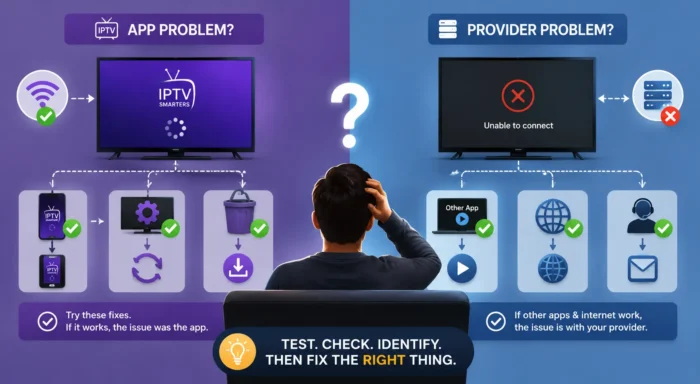
This is one of the most important troubleshooting steps.
If IPTV Smarters Fails but Another App Works
The issue is likely app-related.
If All IPTV Apps Fail
The problem is more likely:
- Provider-related
- Internet-related
- Server-related
If IPTV Works on Mobile Data but Not WiFi
Your ISP may be interfering with IPTV traffic.
Should You Reinstall IPTV Smarters Completely?
Sometimes a full reinstall is the best solution.
When Reinstalling Helps Most
- Frequent crashes
- Persistent login errors
- Broken playback
- Corrupted app data
After reinstalling, always restart your device before testing the app again.
Best IPTV Smarters Settings for Better Performance
Many IPTV users never change the default IPTV Smarters settings. However, a few small adjustments can improve playback stability, reduce buffering, and make navigation smoother.
Recommended Settings
- Use hardware decoding if supported
- Enable external player if playback issues continue
- Keep EPG refresh intervals reasonable
- Avoid unnecessary background features
Changing too many settings at once can make troubleshooting difficult. Adjust one setting at a time and test performance before moving to the next.
Should You Use IPTV Smarters on Older Firesticks?
IPTV Smarters works well on many Firestick devices, but older models may struggle if the app becomes too heavy.
Signs Your Firestick Is Too Weak
- Menus lag constantly
- Channels load very slowly
- App crashes often
- Playback freezes frequently
Older Firesticks with limited memory can struggle when handling large IPTV playlists.
Possible Solutions
- Use a lighter IPTV app
- Reduce background apps
- Free up storage space
- Restart the device regularly
Sometimes the problem is simply hardware limitations rather than IPTV Smarters itself.
How to Improve IPTV Smarters Stability
Once IPTV Smarters is working correctly, there are several things you can do to keep it stable long-term.
Keep the App Updated
Developers release updates regularly to improve compatibility and fix bugs.
Restart Devices Regularly
Long-running devices can accumulate temporary memory issues that affect streaming performance.
Clear Cache Occasionally
Cache buildup can slowly reduce app stability over time.
Maintain Free Storage Space
Low storage is one of the biggest causes of app slowdowns on Firestick devices.
Can IPTV Smarters Be Blocked by ISPs?
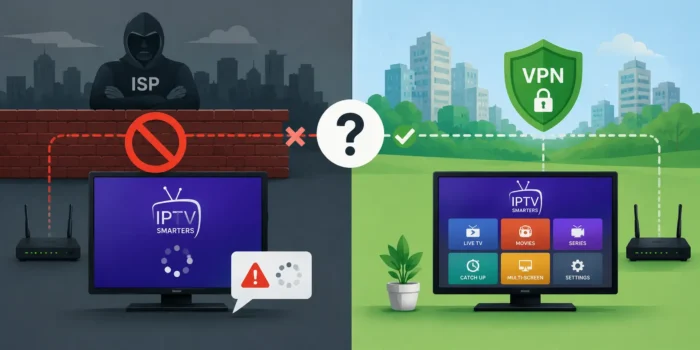
In some regions, internet providers may interfere with IPTV traffic. This does not necessarily target IPTV Smarters directly, but it can affect how the app communicates with IPTV servers.
The Electronic Frontier Foundation explains how traffic management and throttling can impact streaming services.
Possible Signs of ISP Interference
- IPTV works on mobile data but not home WiFi
- Buffering becomes worse during evenings
- Login requests fail randomly
- Streams disconnect frequently
In these cases, testing with a VPN may help determine whether ISP restrictions are involved.
Why IPTV Smarters May Work on One Device but Not Another
This situation is more common than many users realize.
Possible Reasons
- Different app versions
- Different device performance
- Different network conditions
- Corrupted app data on one device
Testing IPTV Smarters on multiple devices is one of the best ways to isolate the source of the problem.
Alternative IPTV Apps You Can Try
If IPTV Smarters continues to have problems, you may want to test another IPTV player.
Popular Alternatives
- TiviMate
- XCIPTV
- Perfect Player
- OTT Navigator
Different IPTV apps handle playback and server communication differently. Some may work better depending on your provider and device.
How to Know If the Problem Is Your IPTV Provider
Sometimes IPTV Smarters is blamed unfairly when the real issue comes from the IPTV provider itself.
Signs the Provider May Be the Problem
- Channels constantly buffer
- Server outages happen frequently
- Login fails for many users at once
- Streams disappear randomly
In these situations, changing apps may not solve the issue completely.
What Internet Speed Do You Need for IPTV Smarters?
Streaming quality depends heavily on internet stability and bandwidth.
Recommended Speeds
- 5 Mbps for SD streaming
- 10–15 Mbps for HD streaming
- 25 Mbps or higher for 4K streaming
Netflix provides useful streaming benchmarks in its official internet speed recommendations.
However, stable internet matters more than extremely high speeds.
Can IPTV Smarters Cause Buffering by Itself?
Yes. While many buffering issues are related to servers or internet quality, the IPTV app itself can also affect performance.
Heavy Apps Can Cause Problems
- Higher memory usage
- Slower navigation
- Playback instability
- More crashes on older devices
This is why lightweight IPTV apps often perform better on lower-end hardware.
When You Should Fully Reset IPTV Smarters
If all troubleshooting steps fail, a full reset may help.
When a Full Reset Is Worth Trying
- Persistent crashes
- Broken playback
- Repeated login failures
- Corrupted settings
A complete reset removes all app data and allows you to start fresh.
Common Mistakes Users Make When Troubleshooting IPTV Smarters
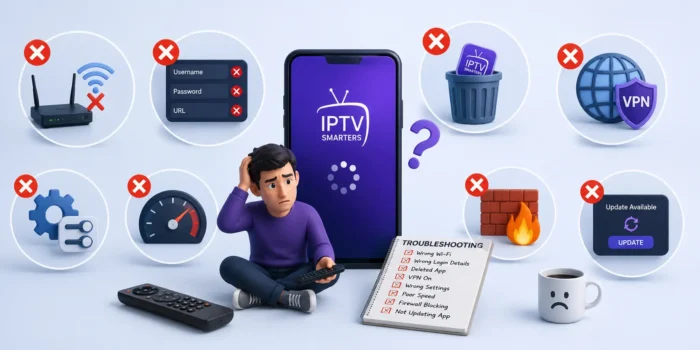
Changing Too Many Settings at Once
This makes it difficult to identify the actual cause of the issue.
Assuming the Provider Is Always the Problem
Many issues come from local devices, apps, or internet problems.
Ignoring Device Storage
Low storage can severely affect IPTV app performance.
Using Untrusted APK Sources
Modified or fake APK files may contain bugs or malware.
Final Thoughts
If IPTV Smarters is not working properly, the issue is usually fixable once you identify the real cause. Most problems come from internet instability, outdated apps, server issues, corrupted cache, or incorrect login details.
Start with the basic troubleshooting steps first:
- Restart your device
- Restart your router
- Clear IPTV Smarters cache
- Check subscription status
- Update the app
If the issue continues, move to advanced fixes such as using an external player, testing a VPN, or reinstalling the app completely.
Once IPTV Smarters is properly optimized, it can provide a stable and smooth streaming experience on Firestick, Android TV, smartphones, and many other devices.
FAQ
Why is IPTV Smarters not working?
Common causes include internet instability, expired subscriptions, outdated apps, server downtime, or corrupted app cache.
How do I fix IPTV Smarters buffering?
Improve internet stability, clear cache, free up storage, restart your device, and test a VPN if needed.
Why does IPTV Smarters keep crashing?
Crashes are often caused by low storage, outdated app versions, or corrupted app data.
Should I reinstall IPTV Smarters?
If clearing cache and updating the app do not work, reinstalling can often fix deeper corruption issues.
Can a VPN help IPTV Smarters?
Yes. A VPN may help if your ISP interferes with IPTV traffic or throttles streaming connections.
What is the best alternative to IPTV Smarters?
TiviMate and XCIPTV are among the most popular alternatives for Firestick and Android TV users.

No comments yet