
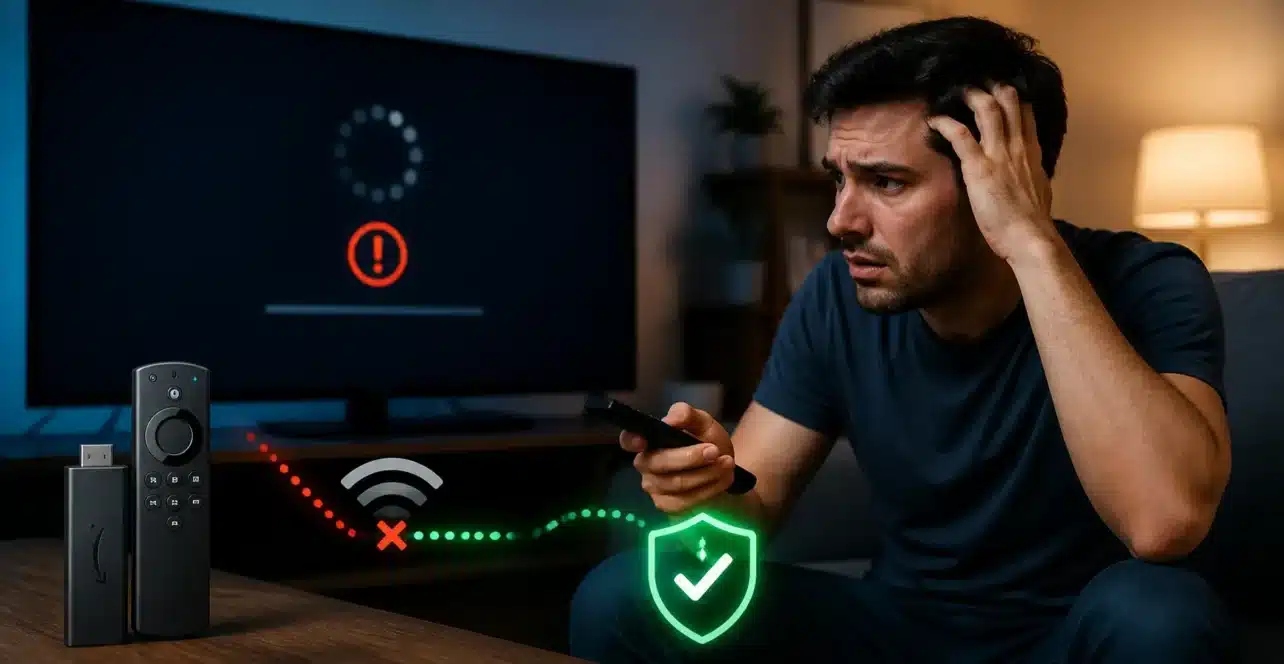
If your IPTV is not working on Firestick, you’re not alone. This is one of the most common issues IPTV users face — whether it’s buffering, channels not loading, login errors, or apps crashing.
The good news is that in most cases, these problems are fixable within minutes. In this ultimate guide, we’ll walk you through every possible cause and solution so you can get your IPTV working again quickly and reliably.
Why IPTV Is Not Working on Firestick
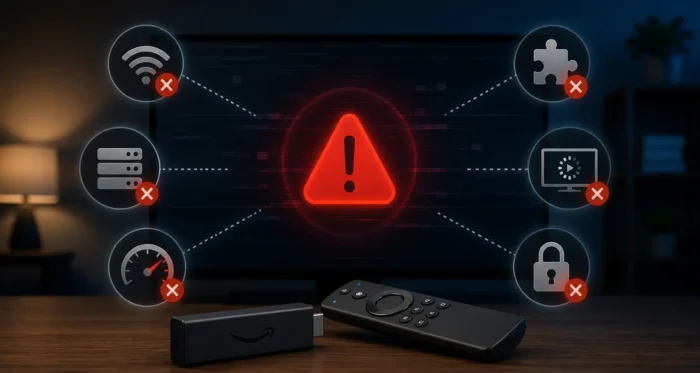
Before jumping into fixes, it’s important to understand why IPTV services stop working on Firestick. Most issues fall into one of these categories:
- Internet connection problems
- App-related issues (IPTV Smarters, TiviMate, etc.)
- Server downtime from your IPTV provider
- Expired or invalid login credentials
- VPN or ISP blocking
- Firestick system glitches or cache overload
Identifying the root cause will help you fix the issue much faster.
Quick Fix Checklist (Try This First)
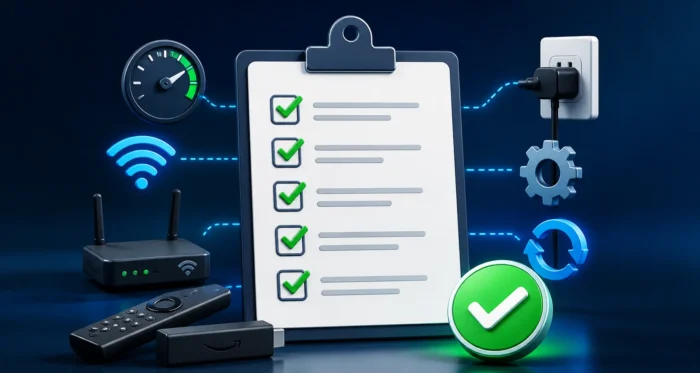
Before going into detailed solutions, try these quick fixes:
- Restart your Firestick
- Restart your WiFi router
- Force close and reopen your IPTV app
- Check if your IPTV subscription is still active
- Switch to a different channel to test
If IPTV still isn’t working, follow the detailed fixes below.
Fix 1: Check Your Internet Connection
A weak or unstable internet connection is the most common reason IPTV fails to load or keeps buffering.
How to check your connection
- Go to Firestick Settings → Network
- Make sure you’re connected to WiFi
- Run a speed test using Fast.com
Recommended speed for IPTV
- SD streaming: 5 Mbps
- HD streaming: 10–15 Mbps
- 4K streaming: 25+ Mbps
If your speed is too low, try moving closer to the router or switching to a wired connection using an Ethernet adapter.
Fix 2: Restart Your Firestick Properly
Temporary system glitches can cause IPTV apps to stop working.
Steps to restart Firestick
- Go to Settings → My Fire TV
- Select Restart
You can also unplug the device for 30 seconds and plug it back in.
Fix 3: Clear IPTV App Cache and Data
Over time, IPTV apps accumulate cache files that can cause crashes or loading issues.
How to clear cache
- Go to Settings → Applications
- Select Manage Installed Applications
- Choose your IPTV app
- Click Clear Cache
If the issue continues:
- Click Clear Data (this will log you out)
- Re-enter your IPTV login details
Fix 4: Check IPTV Server Status
Sometimes the issue isn’t on your side — your IPTV provider’s servers may be down.
How to confirm
- Try logging in from another device
- Contact your IPTV provider
- Check provider announcements or Telegram groups
If servers are down, you’ll need to wait until they’re back online.
Fix 5: Verify Your IPTV Login Details
Incorrect or expired credentials will prevent channels from loading.
Common issues
- Wrong username or password
- Expired subscription
- Blocked account due to multiple connections
Make sure you’re using the correct login format (Xtream Codes or M3U URL).
Fix 6: Update Your IPTV App
Outdated apps can stop working properly due to compatibility issues.
What to do
- Check for updates in the Amazon App Store
- Reinstall the latest version if needed
Many IPTV apps rely on compatibility with Fire OS. You can read more about system updates on Amazon’s official Fire TV support page.
Fix 7: Use a VPN (Very Important)
Some internet providers block or throttle IPTV traffic, which can cause buffering or channels not loading.
Using a VPN can help bypass these restrictions and improve stability.
Benefits of using a VPN
- Avoid ISP throttling
- Access blocked IPTV servers
- Improve streaming stability
Learn more about online privacy and network restrictions from the Electronic Frontier Foundation.
Fix 8: Change IPTV Player Settings
Some IPTV apps allow you to tweak playback settings for better performance.
Try these settings
- Switch between built-in and external player
- Enable hardware decoding
- Adjust buffer size
These settings can significantly improve playback quality depending on your device.
Fix 9: Check Firestick Storage Space
Low storage can cause apps to crash or not load properly.
How to check storage
- Go to Settings → My Fire TV → About → Storage
Free up space
- Delete unused apps
- Clear app cache
- Remove unnecessary files
Fix 10: Reinstall the IPTV App
If nothing else works, reinstalling the app can fix corrupted files.
Steps
- Uninstall the IPTV app
- Restart Firestick
- Reinstall the app
- Log in again
Common IPTV Errors on Firestick (Explained)
“Playback Failed”
This usually means server issues or connection problems.
“Authorization Failed”
Incorrect login details or expired subscription.
“No Channels Available”
Playlist not loading or server offline.
When IPTV Still Doesn’t Work
If you’ve tried all fixes and IPTV is still not working, consider:
- Switching to a different IPTV app
- Testing another IPTV provider
- Checking device compatibility
You can also explore general streaming troubleshooting advice from Consumer Reports.
Final Thoughts
IPTV not working on Firestick can be frustrating, but in most cases, the issue is easy to fix once you identify the cause.
Start with simple steps like restarting your device and checking your internet connection, then move on to more advanced fixes like clearing cache, updating apps, or using a VPN.
By following this guide, you should be able to get your IPTV back up and running smoothly.
FAQ
Why is my IPTV not loading channels?
This is usually caused by server issues, expired subscriptions, or poor internet connection.
Do I need a VPN for IPTV on Firestick?
Not always, but it can help avoid ISP throttling and improve stability.
Why does IPTV keep buffering?
Buffering is often caused by slow internet, overloaded servers, or improper app settings.
Can Firestick cause IPTV problems?
Yes, especially if the device has low storage, outdated software, or too many cached files.

No comments yet