
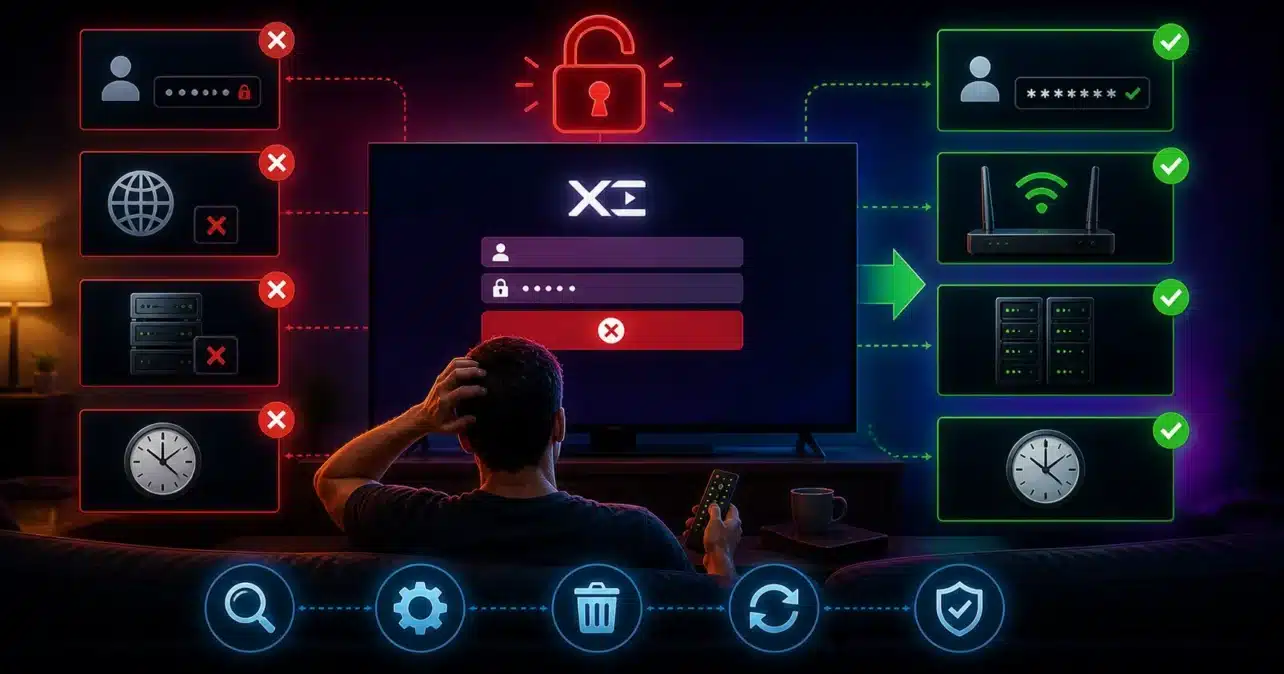
If you are seeing an “Xtream Codes login failed” error when trying to access your IPTV service, you are not alone. This is one of the most common problems IPTV users face when logging into apps such as IPTV Smarters, TiviMate, XCIPTV, or other players that rely on Xtream Codes authentication.
This issue can appear suddenly, even if your IPTV was working perfectly before. Many users assume it is just a wrong password, but in reality, login failures are often caused by deeper issues such as server downtime, connection problems, app errors, or even restrictions from your internet provider.
In this guide, we will explain exactly why Xtream Codes login fails and how to fix it step by step. Understanding the real cause is the key to solving the issue quickly instead of trying random fixes.
What Is Xtream Codes Login?
Xtream Codes is a login-based system used by IPTV providers to deliver content. Instead of loading a playlist file, users log in with structured credentials that connect directly to the IPTV server.
These credentials usually include:
- Username
- Password
- Server URL (portal address)
Once entered, your IPTV app sends a request to the server. If the server verifies your account successfully, your channels, categories, and electronic program guide load instantly.
If the connection fails at any stage, you will see a login error.
What Does “Xtream Codes Login Failed” Actually Mean?
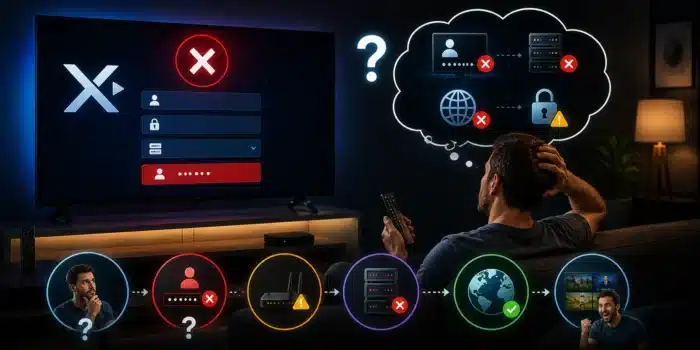
The login failed message is a general error. It does not always mean your credentials are wrong. It simply means that your IPTV app could not complete the login request.
This failure can happen at different levels:
- Authentication failure (wrong login details)
- Connection failure (network issue)
- Server failure (provider downtime)
- Application failure (app bug or incompatibility)
Identifying which of these is causing the problem will help you fix it much faster.
Main Causes of Xtream Codes Login Failed
Incorrect Username or Password
This is the most common reason for login failure. Even a small mistake will prevent access.
- Typing errors
- Extra spaces when pasting credentials
- Incorrect capitalization
- Wrong username format
Many users copy and paste credentials, which can include hidden characters or spaces.
Expired IPTV Subscription
If your IPTV subscription has expired, your provider will block access immediately. This often happens without a clear warning.
- Login fails instantly
- No channels load
- Account appears inactive
This is one of the most common reasons users suddenly lose access to their service.
IPTV Server Downtime
Sometimes the problem is not on your side. IPTV providers regularly perform maintenance or experience technical issues.
- Server updates
- System maintenance
- Unexpected outages
- Overloaded servers during peak usage
If the server is offline, login will fail for everyone using that service.
ISP Blocking or Traffic Restrictions
Some internet providers interfere with IPTV connections. This can block or slow down communication between your device and the IPTV server.
According to the Electronic Frontier Foundation, ISPs can manage and restrict certain types of traffic, which can affect streaming services.
This is why IPTV may work on mobile data but fail on your home network.
Incorrect Server URL
The portal URL must be entered exactly as provided by your IPTV provider.
- Missing http or https
- Wrong port number
- Extra characters or spaces
Even a small mistake in the server address will cause login failure.
App Bugs or Outdated IPTV App
Older versions of IPTV apps may not be compatible with updated servers.
- Login requests fail
- App freezes or crashes
- Connection errors occur
Keeping your app updated is essential for stable performance.
Cache or App Data Issues
IPTV apps store temporary data to speed up performance. Over time, this data can become corrupted.
- Repeated login errors
- App freezing during login
- Slow response time
Clearing cache often fixes these issues.
Too Many Active Connections
Most IPTV providers limit how many devices can be connected at the same time.
- Login blocked if limit exceeded
- Account temporarily restricted
If you are sharing your account or using multiple devices, this could be the cause.
How to Diagnose the Problem Quickly
Before trying all fixes, you should identify where the issue is coming from.
If login fails on one device only
The problem is likely your app, device, or settings.
If login fails on all devices
The issue is likely server-related or account-related.
If login works on mobile data but not WiFi
Your ISP may be blocking or interfering with IPTV traffic.
If login fails only at certain times
The server may be overloaded during peak hours.
Basic Fixes You Should Try First
Re-enter Your Login Details
This should always be your first step.
- Type credentials manually
- Remove extra spaces
- Check server URL format
Restart Your Device
- Turn off your Firestick or TV box
- Turn it back on
This clears temporary glitches.
Restart Your Router
- Unplug for 30 seconds
- Reconnect and wait for full connection
This refreshes your network connection.
Advanced Fixes for Xtream Codes Login Failed
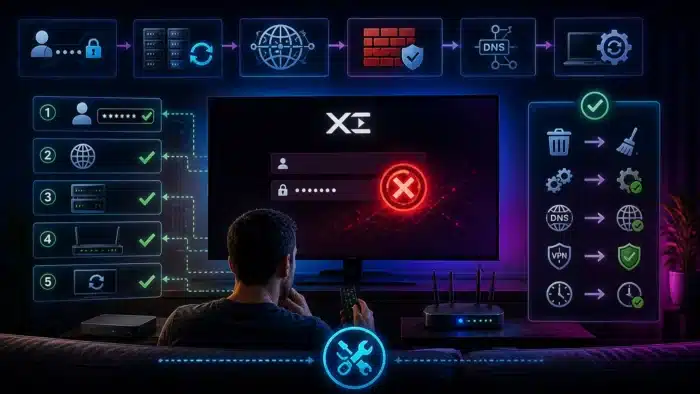
If the basic steps did not fix your login problem, it is time to move to more advanced troubleshooting. These fixes target deeper causes such as network routing, ISP interference, app compatibility, and server communication issues.
Clear IPTV App Cache and Data
Over time, IPTV apps store temporary files that help speed up loading. However, these files can become corrupted and interfere with login requests.
You can follow official steps from Amazon Fire TV support to clear cache properly.
- Go to Settings
- Select Applications
- Open Manage Installed Applications
- Select your IPTV app
- Click Clear Cache
If the issue continues
- Select Clear Data (this resets the app)
- Log in again with your credentials
Clearing data removes saved information, so make sure you have your login details ready before doing this.
Update or Reinstall the IPTV App
Outdated apps may fail to connect to IPTV servers properly. Developers often release updates to fix login bugs and compatibility issues.
- Check for updates in your app store
- Uninstall the current version
- Reinstall the latest version
- Enter your login details again
Reinstalling the app also removes hidden corrupted files that may not be cleared through cache alone.
Try a Different IPTV Player
Not all IPTV apps handle Xtream Codes connections the same way. Some apps are more stable and better optimized for server communication.
- TiviMate
- IPTV Smarters
- XCIPTV
- Perfect Player
If login fails in one app but works in another, the issue is clearly app-related. Testing multiple players is one of the fastest ways to isolate this problem.
Use a VPN to Bypass ISP Restrictions
If your internet provider is blocking or interfering with IPTV traffic, a VPN can help you bypass these restrictions.
- Connect to a nearby server location
- Test login again
- If it fails, try another VPN location
A VPN encrypts your connection, making it harder for ISPs to detect and filter IPTV traffic. This often restores access instantly if blocking is the cause.
You can learn more about traffic filtering and internet restrictions from the Electronic Frontier Foundation.
Check Your Internet Stability
Login requests require a stable connection. Even if your internet is fast, instability can cause connection failures.
Use Fast.com to test your connection.
- Ensure consistent speeds
- Avoid weak WiFi signals
- Move closer to your router
- Use Ethernet if possible
Stable internet is more important than raw speed when it comes to IPTV.
Change DNS Settings
DNS issues can sometimes prevent your device from reaching IPTV servers. Switching to a public DNS can improve connectivity.
- Google DNS: 8.8.8.8
- Cloudflare DNS: 1.1.1.1
More information is available at Google Public DNS.
This fix may not always solve login problems, but it can help if your ISP’s DNS is slow or unreliable.
Check Router or Firewall Settings
Some routers block certain ports or restrict unknown traffic, which can affect IPTV connections.
- Disable strict firewall settings temporarily
- Allow unknown connections for testing
- Restart router after changes
If login works after adjusting settings, your router was blocking the connection.
Reduce Network Load
If multiple devices are using your network heavily, your IPTV connection may struggle to communicate with the server.
- Pause downloads on other devices
- Limit streaming on other TVs
- Disconnect unused devices
Network congestion can indirectly cause login failures by interrupting communication.
Common Xtream Codes Errors Explained
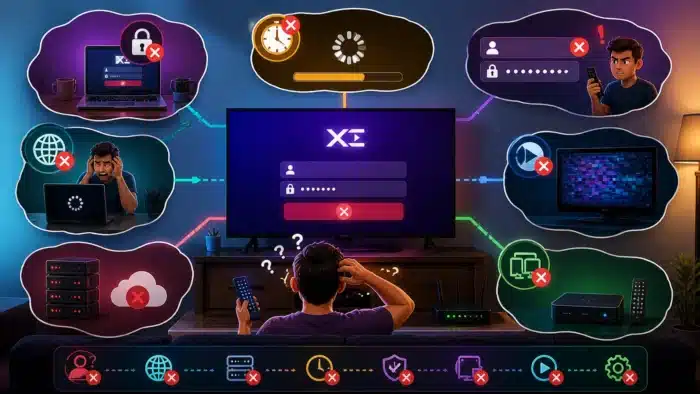
Login Failed
This is the most general error and usually means the app cannot authenticate or connect to the server.
Authorization Error
This usually indicates that your account is inactive, expired, or restricted.
Server Not Found
This happens when the portal URL is incorrect or the server is offline.
Invalid Details
This means your username or password is incorrect.
How to Prevent Xtream Codes Login Issues
Once you fix the problem, you should take steps to avoid it happening again.
- Save your login details securely
- Keep your IPTV app updated
- Restart your device regularly
- Clear cache occasionally
- Use a stable internet connection
- Avoid exceeding connection limits
These simple habits can prevent most future login issues.
When to Contact Your IPTV Provider
If you have tried all fixes and login still fails, the issue may be on the provider’s side.
- Server downtime
- Account issues
- Updated login credentials
Contacting support is the best option in these cases.
Final Thoughts
Xtream Codes login failed errors can be frustrating, but they are rarely permanent. Most problems come from simple causes such as incorrect credentials, expired subscriptions, or network issues.
By following the steps in this guide, you can quickly identify the real cause and fix it without unnecessary trial and error.
In most cases, once the correct issue is addressed, your IPTV service will work normally again.
FAQ
Why does Xtream Codes login fail?
It is usually caused by incorrect credentials, expired subscription, server downtime, or connection issues.
Can a VPN fix login problems?
Yes, especially if your ISP is blocking IPTV traffic.
Is this a server problem?
Sometimes, especially during maintenance or outages.
Do I need to reinstall the app?
Only if clearing cache and updating the app does not solve the issue.

No comments yet